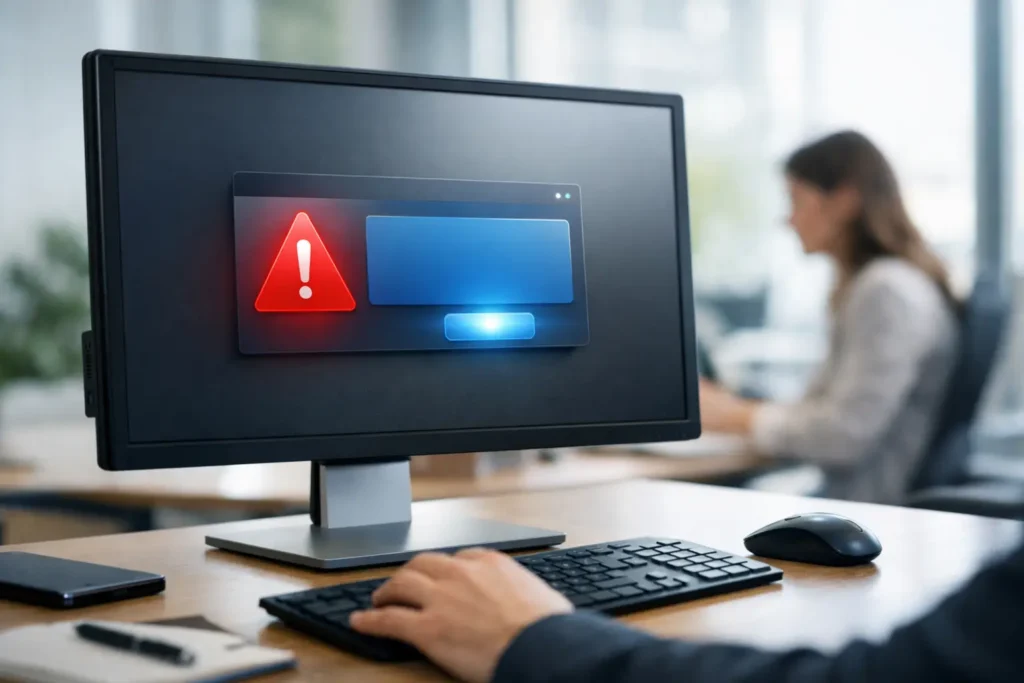
A deadline changes at 10:15 a.m. The shift that needs to know is on the floor, in customer meetings, or working through a full inbox. By the time an email is opened, the message may already be outdated. A practical guide to employee desktop alerts starts with this reality: urgent communication needs a channel employees will actually see during the workday.
Desktop alerts put timely messages directly on managed employee computers. Used well, they make company communication faster, more visible, and easier to govern. Used poorly, they become another interruption people dismiss without reading. The difference is not the pop-up itself. It is the operating system behind it: clear rules for urgency, relevance, design, timing, and measurement.
What employee desktop alerts are designed to do
An employee desktop alert is a message that appears on a work computer, usually as an instant notification. It can direct attention to a time-sensitive update, such as a safety notice, system outage, schedule change, sales milestone, or all-hands reminder. Unlike an email that can sit unread or a chat post that disappears in a busy channel, an alert appears at the point of work.
That visibility is the advantage, but it also creates a responsibility. An alert asks an employee to stop, look, and decide what to do next. Reserve that interruption for information that has a clear purpose and a defined audience.
Desktop alerts work best as one part of a managed screen communications program. Login screens, wallpapers, screensavers, and short video content can carry recurring culture messages, recognition, KPIs, campaign reminders, and event notices. Alerts then handle the messages that cannot wait for an employee to notice a screen during a natural pause.
Guide to employee desktop alerts: start with message priority
Before choosing colors, templates, or notification settings, classify the message. This one decision prevents most alert fatigue.
A useful framework has three levels. Critical alerts require prompt action or immediate awareness. Examples include a building closure, a safety instruction, a major service disruption, or a security-related notice. Important alerts need attention soon but do not require employees to abandon their current task. A registration deadline, a revised meeting time, or an approved policy update may fit here. Routine information, such as employee recognition, a company picnic, a goal celebration, or a reminder about a new benefit, usually belongs on desktop screens rather than in an interruptive notification.
The exact thresholds depend on your organization. A manufacturing site may treat a production schedule change as important. A distributed sales organization may reserve alerts for customer-impacting changes. What matters is that communicators, HR, operations, and IT agree on the rules before a real emergency tests them.
Put the policy in plain language. State who can send each level of alert, which audiences they can reach, how long a message stays visible, and who approves company-wide notices. Centralized governance does not slow communication down. It removes the debate when speed matters.
Send less often, target more precisely
The fastest way to weaken an alert channel is to send every announcement to every employee. People quickly learn that a pop-up is not relevant to them, then close it automatically.
Target by department, location, role, shift, or project group whenever possible. A beta testing update belongs with the people testing the release. A regional sales incentive should reach the relevant market. A parking change should reach the employees who use that location. Company-wide alerts should be reserved for messages that truly affect the entire organization.
Targeting is also a matter of trust. Employees are more likely to read an alert when past alerts have consistently been useful to them. That trust is difficult to win and easy to lose.
Timing deserves the same care. Avoid sending noncritical notices in the first minutes of the day, during known high-volume customer periods, or near shift handovers unless the message concerns that moment. For teams across time zones, schedule routine notices to appear during local working hours. A message that is urgent in one location may be routine in another.
Write alerts for action, not for announcements
A desktop alert has limited space and limited attention. Write the headline first. It should tell employees what changed or what they need to do without requiring them to decode corporate language.
Compare “Update Regarding Facilities Access” with “West Entrance Closed Today – Use North Entrance.” The second version gives the employee the situation and the instruction in one glance.
Keep the body short. Include the essential detail, the deadline if there is one, and a next step when action is required. If employees need more background, direct them to the designated internal resource through your existing company process, but do not force them to search for the immediate answer.
Good alert copy is specific and calm. “VPN maintenance starts at 8 p.m. ET. Save work before then. Expected access delay: 20 minutes.” That is more useful than “Please be advised of planned maintenance.” In a safety or security situation, avoid speculation. State what is known, what employees should do, and when the next update will be issued.
Make the message recognizable in seconds
A notification is not the place for a dense flyer shrunk to fit a small window. Use a strong headline, a short supporting line, and a clear visual hierarchy. Brand colors and a consistent logo treatment help employees recognize an official company message, but readability comes first.
Use high contrast and avoid placing essential words inside an image. If a message needs to be understood quickly, the text should remain text. Test the alert on different screen resolutions and with common desktop settings before broad distribution.
For campaign content that is better suited to screensavers or wallpaper, visual storytelling can do more of the work. A sales goal celebration can use a bold number and a team photo. A company picnic notice can include the date, location, and a simple RSVP reminder. These messages build energy without demanding an immediate interruption.
Teams that already create presentations can keep production efficient by using familiar PowerPoint workflows. A shared template with approved fonts, colors, and layouts lets non-designers produce polished content without waiting for a separate design queue. This protects brand consistency while keeping communication close to the people who own the message.
Build a controlled publishing workflow
Effective alerts require a clear path from request to delivery. The workflow can be simple: create, review, target, publish, measure.
First, the message owner creates the content using an approved template. Next, the appropriate reviewer checks facts, audience, urgency level, and timing. For routine team communications, that may be a department manager. For company-wide or sensitive messages, it may include internal communications, HR, operations, or IT.
Then select the employee group and delivery window. Confirm that the message will not conflict with another scheduled campaign or alert. Finally, publish through a centralized control panel where authorized users can manage content without relying on local manual updates.
This matters for IT as much as communications. A cloud-hosted system with a lightweight sync app on employee computers reduces the need to maintain separate content files and settings across endpoints. IT retains controlled deployment, while business teams gain a dependable way to communicate without opening a ticket for every update.
Measure attention, then improve the system
Sending an alert is not proof that communication happened. Track views and notification reads to understand whether employees had the opportunity to see the message. Compare results by audience, location, device group, and message type where appropriate.
Low read rates can reveal several issues. The alert may have arrived at a poor time, reached the wrong audience, used an unclear headline, or competed with too many other messages. High read rates do not automatically mean the message was understood, so combine reporting with short pulse questions, manager feedback, or completion data when the subject requires action.
Use the data to refine your rules. If routine event reminders consistently perform well as screensaver content, stop interrupting employees with them. If critical operational alerts are opened quickly but follow-up actions lag, improve the call to action or ensure managers reinforce the instruction. Accountability turns desktop messaging from a passive signage feature into a communications system.
Common mistakes to avoid
The most common mistake is treating desktop alerts as a replacement for every other channel. They are powerful because they are visible, not because they can carry every detail. Use them to create awareness and prompt action, while longer explanations live in the appropriate internal destination.
Another mistake is allowing too many people to send company-wide notices. Give teams the ability to communicate with their own groups, but protect enterprise-wide reach with approval rules. Finally, do not confuse attractive content with effective content. A clean, direct message that reaches the right people at the right time will outperform a beautiful announcement that nobody notices.
ConnectedCompany gives communicators a single managed channel for alerts and persistent desktop content, with familiar presentation-based creation and engagement reporting. The practical value is simple: the people responsible for alignment can publish quickly, while IT and leadership retain control over what appears on every screen.
The best employee desktop alert is not the one that makes the biggest interruption. It is the one employees recognize as relevant, credible, and worth acting on when it appears.