The fastest way to miss a critical update is to publish it where employees are already overwhelmed.
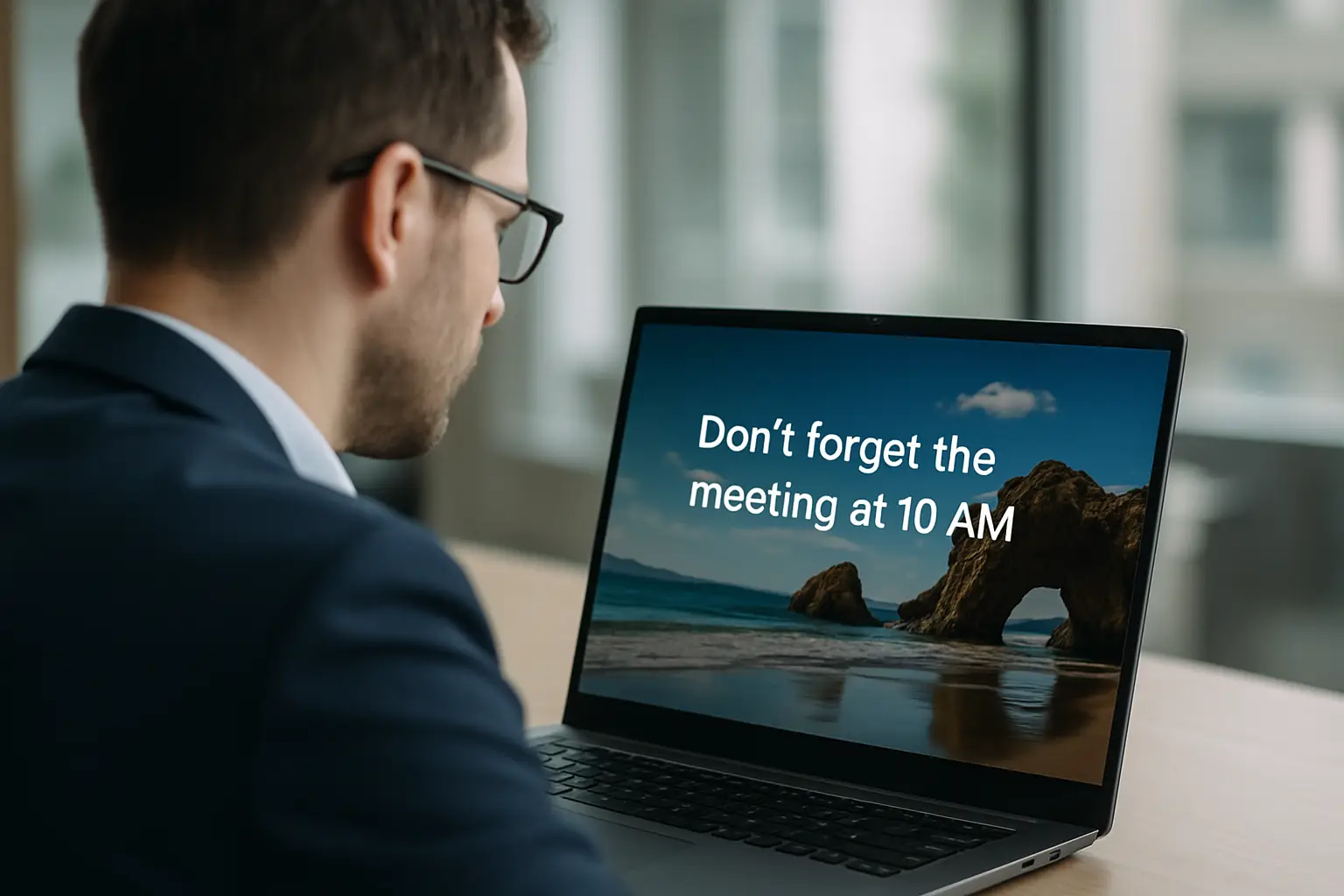
Email gets buried. Chat gets muted. Portals require intent. But every Windows user sees the same thing multiple times a day – the lock screen, the login moment, and the idle screen when they step away.
That’s the promise of windows lock screen messaging software: turn an unavoidable touchpoint into a managed communications channel. Done well, it’s not “pretty wallpapers.” It’s a controlled system for aligning teams, reinforcing culture, and moving operations forward without asking people to check yet another place.
What windows lock screen messaging software actually does
At its core, this category lets you place company-approved messaging on Windows devices in moments when employees are naturally paying attention: when the PC is locked, when the user signs in, and when the device is idle. The goal is reach, not clicks.
Most solutions in this space combine a few surfaces. Lock screen and login messaging drive awareness at the start of a shift. Screensavers and wallpapers carry reminders throughout the day. Push notifications handle time-sensitive moments when waiting for the next lock event is too slow.
If you’re evaluating tools, treat “lock screen messaging” as the headline but not the whole system. The real value comes from managing multiple desktop surfaces together so you can match the message to the urgency.
Why this channel works when email and chat fail
Lock screen messaging wins on one simple advantage: it’s default behavior. Employees don’t have to opt in, join a channel, or remember a URL. The message is where their eyes already go.
That matters most in organizations with distributed schedules and mixed roles. Not everyone sits in front of email all day. Not everyone is active in chat. And even in office-first environments, attention is fragmented. The lock screen moment is one of the few consistent, repeatable touchpoints across departments.
It also supports a different kind of communication. Email is great for detail. Chat is great for coordination. Lock screen messaging is great for reinforcement: the steady drumbeat of priorities, recognition, deadlines, and “here’s what matters this week.”
When lock screen messaging is the right fit (and when it’s not)
This channel shines when you need broad reach with minimal effort. Think safety reminders, schedule changes, policy updates, open enrollment, event notices, weekly goals, and quick recognition.
It’s less effective when the message requires complex interaction or a long reading session. A lock screen is not a learning management system, and it shouldn’t try to be. If employees must complete a workflow, you can still use the lock screen to point to the system of record, but keep the on-screen content short and focused.
There’s also an IT reality check. If your device fleet is heavily BYOD, or if many employees use non-Windows endpoints, lock screen messaging won’t be your only channel. It can still be a powerful layer in a multi-channel approach, but it won’t replace everything.
What to look for in windows lock screen messaging software
You can buy something that technically changes a background, or you can buy a communications control system. The difference shows up in four areas: governance, speed, targeting, and accountability.
Centralized control and governance
The software should give communicators and admins one place to manage messaging across the organization. That includes approving content, scheduling it, and standardizing brand consistency.
Governance is not just about security. It’s about preventing “message sprawl,” where every department posts whatever it wants and employees stop paying attention. The best systems make it easy to publish, but hard to publish chaos.
Creation speed for non-designers
If updating the lock screen requires a designer, a ticket, and a three-day wait, the channel will go stale. Look for workflows that match how internal teams already work.
A practical litmus test: can a communications manager take a PowerPoint slide, update a date, and publish it in minutes? If the tool forces a new design environment with a steep learning curve, adoption slows and the channel becomes “special projects only.”
Targeting and relevance
Company-wide messages are necessary, but they’re not sufficient. Employees tune out when content feels generic. Targeting lets you deliver the right message to the right group: by location, department, role, shift, or team.
This is where lock screen messaging becomes a daily alignment tool instead of a bulletin board. HR can run benefits reminders for eligible employees. Ops can post shift-specific KPIs. IT can notify only the sites impacted by planned maintenance.
Scheduling, rotation, and content hygiene
A lock screen channel needs rhythm. You want recurring content (values, safety, customer stories) rotating alongside time-bound announcements. The platform should make it easy to set start and end dates so expired messages don’t linger.
Content hygiene is a real trust issue. When employees see last month’s event still promoted on the login screen, they assume everything else is outdated too.
Measurable engagement
This is the feature that separates “nice idea” from “managed channel.” You need to know whether people actually saw the message.
Look for view tracking and notification read metrics, ideally organized in a dashboard that helps you answer simple operational questions: How many devices displayed the campaign? Which teams are seeing it? Are notifications being acknowledged? If you can’t measure reach, you can’t manage it.
IT-friendly deployment and maintenance
IT teams will ask practical questions: How does it install? How are updates handled? What happens when a device is off-network? How do we control permissions? What logs exist for troubleshooting?
Cloud-hosted services can reduce the server-side burden, but endpoints still need a lightweight client or sync agent. The best deployments respect standard IT practices: controlled rollout, minimal end-user disruption, and predictable performance.
Common workplace use cases that justify the investment
Lock screen messaging earns its keep when it replaces scattered, repetitive effort with one controlled publish action.
Operations teams use it to keep priorities visible: daily output targets, safety streaks, on-time delivery goals, and quick reminders about process changes. HR uses it to drive participation: enrollment windows, policy updates, training deadlines, recognition, and culture moments that keep people connected across sites.
Internal comms leaders use it as an always-on headline channel. Instead of asking employees to read a long newsletter, they can reinforce three key messages all week, then rotate the next set. It’s how you create consistency without creating fatigue.
And yes, it’s great for the everyday moments that build a workplace people want to be part of: welcoming new hires, celebrating anniversaries, sharing customer wins, promoting a company picnic, or spotlighting a team that hit a goal.
How to roll it out without creating noise
The biggest risk with desktop messaging is overposting. If every screen becomes a cluttered flyer board, employees stop seeing anything.
Start by deciding what this channel is for. A simple approach works: reserve lock and login surfaces for the most important messages and rotate a small set at a time. Use wallpapers and screensavers for ongoing reinforcement. Use push notifications only when timing matters.
Then define ownership. Someone needs editorial control, even if departments can submit content. That owner sets standards for readability, tone, and frequency. Short copy, strong visuals, and clear calls to action win here.
Finally, build a repeatable cadence. Weekly campaign slots, monthly themes, and a fast lane for urgent notices keep the channel fresh without making every update feel like a fire drill.
A practical evaluation checklist you can use in demos
When you sit through demos, steer vendors toward real-life scenarios. Ask them to show how you would publish a time-sensitive change today, then how you would run a month-long culture campaign.
You’ll learn quickly whether the tool is built for communicators or only for administrators. You’ll also see whether targeting is truly granular or just a basic “all devices” switch.
If you need a concrete set of criteria, focus on these five questions:
- Can we create and publish content in minutes using tools our team already knows?
- Can we target by department, location, or role without manual device wrangling?
- Can we schedule content with start and end dates and rotate multiple messages cleanly?
- Can we measure views and notification reads in a way that supports accountability?
- Can IT deploy and maintain it with minimal overhead?
If a platform answers “yes” across all five, you’re looking at a channel you can actually run, not just a feature you’ll try once.
Where ConnectedCompany fits
If your goal is to turn employee screens into a managed channel – wallpapers, lock screens, screensavers, video playback, and instant push notifications – ConnectedCompany is built for exactly that. It’s cloud-hosted, centrally governed, and designed around a PowerPoint-first creation workflow so non-designers can publish branded updates fast while still giving leadership and IT the control and reporting they expect.
The trade-offs to be honest about
Lock screen messaging is powerful, but it’s not magic. Employees will see the message, but they may not act unless you make the next step simple. Pair the on-screen content with a clear instruction: “Talk to your supervisor,” “Submit by Friday,” or “Watch for the email with the link.”
You also have to respect attention. The channel works because it’s consistent, not because it’s loud. If everything is urgent, nothing is.
Treat Windows lock screen messaging as your organization’s public square: curated, current, and worth looking at. When employees trust that what’s on the screen is relevant, you get the outcome every communicator and operator wants – people moving in the same direction without being chased.