Your employees check email less than you think. With open rates for internal communications often hovering below 30%, critical messages about policy changes, security updates, and company events get lost in crowded inboxes. Corporate screensavers deliver visually appealing content to employees without disrupting their workflow.
This guide is for internal communications, HR, and IT professionals seeking to improve employee engagement and message reach through modern digital channels.
A corporate screensaver transforms every idle Windows and macOS device into a silent, always-on messaging platform that brings internal communications to life, making them more engaging and dynamic by reaching employees exactly when they return to their desks.
What is a corporate screensaver (and why it matters in 2026)
A corporate screensaver is a centrally managed, branded visual display that activates on employee computers after a configurable period of inactivity, typically 5-15 minutes. Instead of the default screensaver showing generic animations, your organization displays scheduled content such as company news, KPIs, compliance reminders, and cultural reinforcements.
Corporate screensavers deliver visually appealing content to employees without disrupting their workflow, acting as a non-intrusive internal communication channel that bypasses cluttered inboxes to deliver visual information. They transform idle screens into dynamic communication tools that keep employees informed and engaged, delivering information in a visually attractive way to grab attention and stimulate communication engagement.
The core problem this solves is straightforward: internal communications teams face an uphill battle with fragmented communication tools and email overload.
- Email open rates for internal messages often fall below 20-30%
- Employees juggle Teams, Slack, intranets, and multiple other channels daily
- Key corporate messages get buried under notifications and competing priorities
- Remote workers and office staff receive inconsistent information
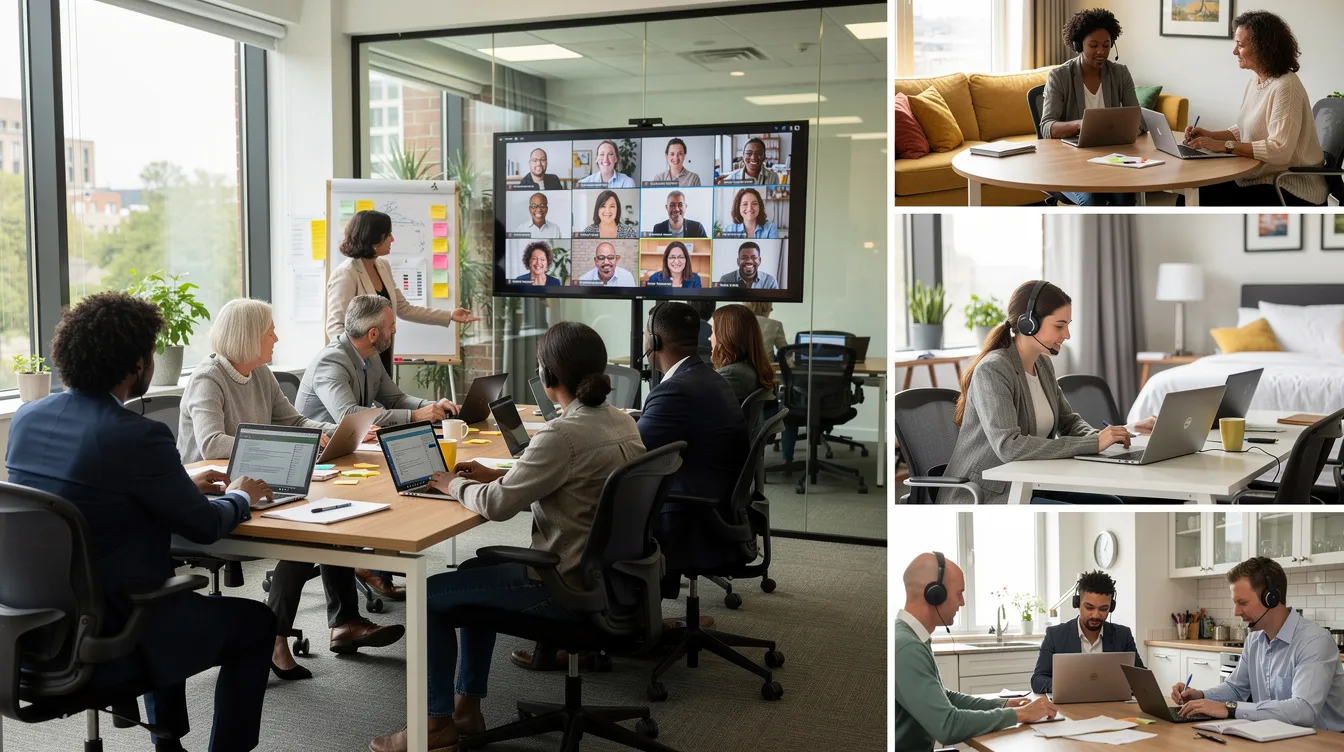
Corporate screensaver software turns every managed device into a passive communication channel that bypasses the inbox entirely, making custom company screensavers a powerful tool for corporate branding and engagement. This is especially effective for reaching employees working remotely, ensuring that important corporate information is displayed directly on their desktops regardless of physical location. Corporate screensavers can also be used to broadcast important notifications and reminders to remote employees, helping maintain consistent communication across hybrid workplaces that have persisted since 2020, where your workforce is split across offices, homes, co-working spaces, and multiple time zones.
Aligning corporate screensavers with business objectives
Corporate screensaver software is more than just a visual refresh for idle computer screens—it’s a strategic asset for aligning internal communications with your organization’s business objectives. By transforming every idle screen into a dynamic communication channel, companies can ensure that key corporate messages reach employees consistently, no matter where they work.
Reinforcing Company Values and Reducing Overload
When you leverage visual communication on employees’ computer screens, you reinforce company values, mission, and vision in a way that’s both memorable and non-intrusive. This approach helps drive business objectives by keeping important messages front and center, increasing employee attention, and reducing information overload that often comes with traditional communication channels.
Turn idle PC screens into communication “billboards”
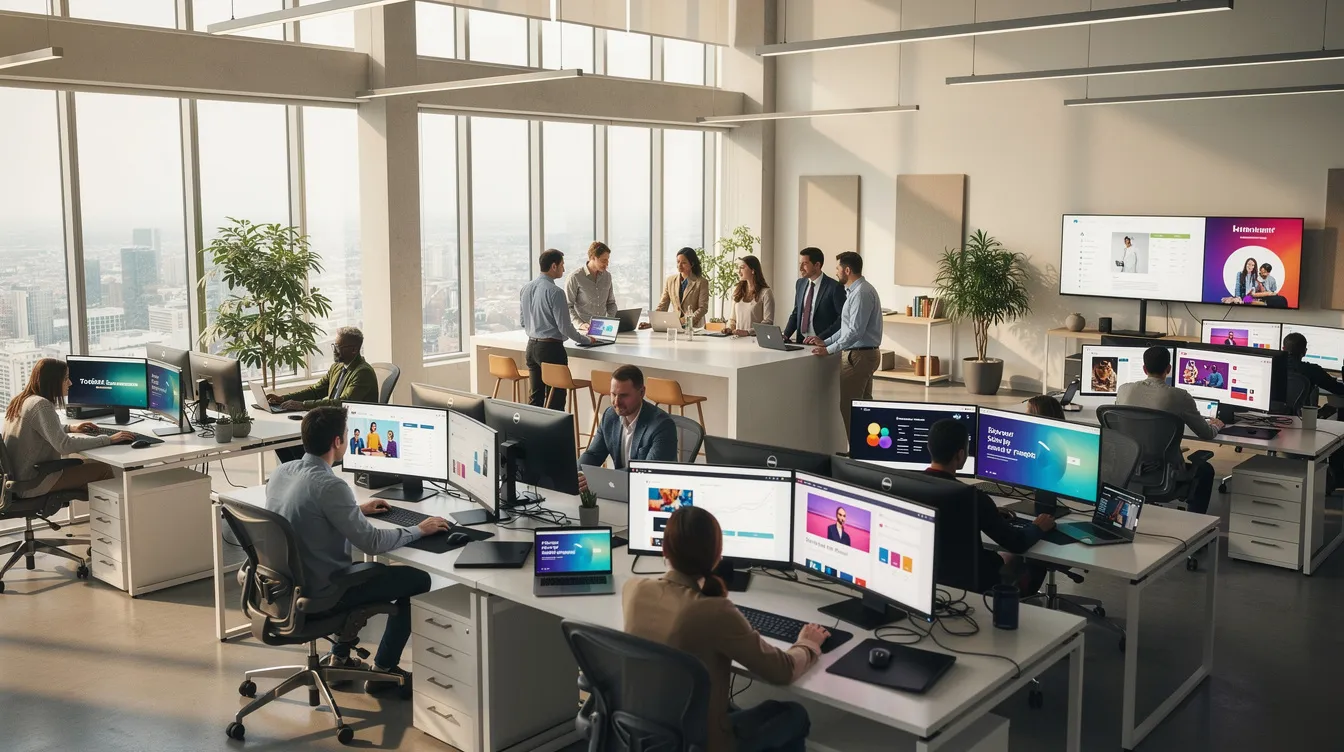
Think of every idle computer in your organization as an unused digital billboard. Right now, those screens display flying logos or go dark entirely. With a corporate screensaver strategy, they become prime real estate for important messages and can support creative ways to use screensavers for internal communication.
Screensaver Activation and Content Cycle
Here’s how it works in practice:
- Screensavers automatically activate after a set period of inactivity on Windows 10/11 and macOS devices
- Content cycles through company news, deadline reminders, KPI dashboards, and campaign visuals
- All slides are centrally scheduled and updated without requiring user action
- Different content can display based on department, location, or role
Concrete examples of what you might display:
- Launch a new compliance policy in April 2026 with key deadlines and action items
- Announce a product release with countdown graphics and launch dates
- Share Q2 town hall dates and registration links
- Highlight quarterly business objectives with progress indicators
- Promote company events like the annual conference or team celebrations
Ideal visuals follow a simple formula: full-screen images or slides at 1920×1080 resolution, clear headlines in large fonts, brand colors, and minimal text for fast comprehension. Employees should understand the message in a two-second glance.
Light up inactive PC screens with repeated, memorable messages
A single email blast gets seen once—if it gets opened at all. Corporate screensavers leverage repetition and passive exposure to dramatically improve recall. When employees see the same visually engaging message multiple times throughout their workday, it sticks.
Most corporate screensaver deployments cycle through 5-10 slides, rotating every 10-20 seconds. This creates natural variation while reinforcing key themes.
Content Ideas for Repetition
Content ideas that benefit from repetition:
- Monthly cybersecurity awareness tips (“Spot phishing emails by checking sender addresses”)
- Weekly health and wellbeing prompts featuring mental health resources
- Recurring HR deadlines like benefits enrollment periods or performance review cycles
- Quarterly reminders about company values with real employee stories
- Important dates for training completion or policy acknowledgements
The timing works naturally with employee behavior. Staff see the content when returning from meetings, coffee breaks, or calls. There’s no interruption, no notification ping—just relevant content waiting on their screens.
Visual style recommendations:
- Bold headlines readable from 2-3 meters away
- Large fonts with high-contrast backgrounds
- Simple icons rather than complex graphics
- Short URLs or QR codes instead of dense paragraphs
- Static images work well, but subtle animations can add dynamism
Reach every desk and remote employee consistently
Fragmentation is the enemy of consistent communication. Your organization likely includes office-based teams, remote employees working from home, field staff on client sites, and frontline workers in different facilities. Each group accesses different devices, in different locations, across multiple time zones, so applying best practices for effective internal communication campaigns becomes essential.
A corporate screensaver solution deployed via standard tools like Intune, Group Policy, or MDM reaches all managed laptops and desktops uniformly.
Coverage scenarios in practice:
- Remote engineers see the same security reminders on home office laptops as colleagues in HQ
- Finance teams in the headquarters receive location-specific announcements alongside company-wide news
- Regional sales managers on client-site laptops stay informed and engaged with quarterly updates
- Call center staff see operational reminders tailored to their role
Segmentation capabilities allow for targeted communication:
- Create different content playlists for locations (one loop for US offices, another for European teams)
- Display role-specific information (managers see leadership communications, individual contributors see team updates)
- Ensure remote employees informed about changes that affect their work specifically
This approach complements rather than replaces email and chat. Screensavers reinforce the key 5-10 strategic messages of the quarter, keeping employees connected to priorities without adding to inbox volume.
Cut through information clutter with targeted, visual updates
Information overload is real. Employees face constant notifications from multiple communication channels, and declining attention means important updates get missed. Corporate screensavers cut through this clutter by appearing only when devices are idle—no active interruption, no disrupting workflow.
Targeting ensures messages reach the right audiences:
- Only staff in Germany see local works council announcements
- Only the IT team sees change freeze calendars and maintenance windows
- Only new hires see onboarding content during their first 90 days
- Only managers see leadership communication previews
This precision reduces noise. Instead of broadcasting everything to everyone (and getting ignored), you deliver relevant content to specific groups who need it.
Effective targeted messages follow a simple structure:
- One headline with the core message
- One supporting line with context or deadline
- One key graphic, chart snippet, or icon
- Clear next step if action is required
Organizations using this approach report reducing email campaigns while improving message recall and action rates. When employees see fewer but more relevant messages, engagement increases naturally.
Engage employees through rich visual communication
Think of corporate screensavers as always-on digital signage directly on employee devices. Unlike shared screens in lobbies or meeting rooms, screensavers reach employees at their individual workstations—a personal touchpoint for organizational messaging that can be orchestrated through a cloud-based team communication platform like connectedcompany.
Supported Content Types
Supported content types for visual engagement, alongside options like custom wallpapers and lock screen images with connectedcompany:
- Images (PNG/JPEG) with branded visuals and photography
- Short MP4 videos for dynamic announcements
- Animated GIFs adding motion without full video production
- HTML dashboards pulling live data
- PowerPoint slides exported as images or video
Engagement ideas that capture employee attention:
- Countdown timers to company events like the annual conference or product launches
- Leader quotes with photos reinforcing company values
- Values spotlights featuring real employees demonstrating organizational culture
- “Employee of the month” features with photos and achievements
- News feeds highlighting recent wins, customer success stories, or team accomplishments
- Screensavers showcasing employee achievements, company milestones, or customer feedback from customers to boost engagement and recognition
Visual branding consistency matters:
- Use official color palette across all slides
- Place logos consistently in the same position
- Apply brand typography for all text elements
- Maintain consistent layout templates across campaigns
Include simple calls-to-action where appropriate: short URLs, intranet links, QR codes, or prompts like “Visit the Learning Portal before 30 June 2026.” Make it easy for employees to take the next step.

Designing an effective corporate screensaver in PowerPoint
PowerPoint is often the fastest path for internal comms and HR teams to design professional, on-brand screensaver loops. Most communication teams already know the tool, which eliminates learning curves and speeds content creation.
PowerPoint Template Setup
Setting up your PowerPoint template:
- Create a widescreen (16:9) deck at 1920×1080 resolution for crisp full-screen display
- Use your organization’s official PowerPoint template as a starting point
- Ensure slides display well on both laptop screens and external monitors
Slide structure best practices:
- One message per slide—no exceptions
- Large headline (48-72pt font minimum)
- Minimal supporting text (one sentence maximum)
- High-contrast background for readability
- Brand colors and consistent visual style
Animation and transition guidelines:
- Use subtle transitions like simple fades between slides
- Avoid distracting animations that pull focus from the message
- Keep motion minimal—the content should communicate, not the effects
Exporting for deployment:
- Export the presentation as high-resolution PNG images for static display
- Alternatively, export as MP4 video for animated loops
- Both formats work as corporate screensaver assets in deployment platforms
Practical tips from experience:
- Limit loops to 8-12 slides to maintain variety without overwhelming
- Test on both laptop screens and external monitors for readability
- Make text readable from 2-3 meters away (simulate someone returning to their desk)
- Review slides on different device types before finalizing
Using PowerPoint together with the connectedcompany platform
The connectedcompany platform lets organizations publish PowerPoint-designed screensavers centrally to all managed devices. This bridges familiar design tools with enterprise-grade distribution and management capabilities.
The workflow is straightforward:
- Communication teams build a PowerPoint deck using their standard templates
- Upload the deck to connectedcompany’s management console
- The platform automatically converts and distributes content as a corporate screensaver
- Slides appear on targeted devices without any local user action required
Scheduling capabilities enable campaign management:
- Set specific start and end dates for campaigns (e.g., “Cybersecurity Month” from 1-31 October 2026)
- Define rotation frequency for how often slides cycle
- Schedule content in advance for the entire quarter
- Automatically expire time-sensitive announcements
Targeting options provide precision:
- Select audiences based on department, location, seniority, or device group
- Create multiple playlists for different employee segments
- Exclude specific groups from seeing certain content
- Target by operating system (Windows vs macOS) if needed
Live updating reduces maintenance burden:
- When you update a slide in the source PowerPoint, connectedcompany pushes the new version automatically
- No need for users to take any action or IT to manually deploy updates
- Changes propagate across the entire fleet within configured sync intervals
Advantages of a corporate screensaver powered by connectedcompany
Using connectedcompany for corporate screensaver management delivers concrete benefits over manual deployment or ad-hoc solutions.
Centralized management advantages:
- Single platform for all screensaver content across the organization
- Consistent branding enforcement through approved templates
- Reduced IT workload compared to manual Group Policy configurations
- No need for individual device-by-device updates
Analytics and measurement:
- Track how many devices displayed a particular screensaver campaign
- Monitor campaign duration and display time across the fleet
- See which audiences were reached and verify coverage
- Correlate campaigns with behavior changes (e.g., training completion rates)
Governance features for enterprise needs:
- Role-based access for communications, HR, and IT teams
- Approval workflows before content goes live
- Version history of all PowerPoint assets
- Audit trails for compliance documentation
Integration capabilities:
- Pull data from HRIS systems to automatically update slides (e.g., welcome new starters weekly)
- Connect to intranet or other data sources for dynamic content
- API access for custom integrations with existing tools
Reliability and offline support:
- Content cached locally on devices
- Screens display images and videos even if the user is offline or on slow VPN connections
- Graceful handling of internet connection interruptions
- Consistent experience regardless of network conditions
This creates a cost effective solution compared to traditional communication methods, combining the reach of email with the visual impact of digital signage on employees screens.
Use cases: internal communication with corporate screensavers
This section walks through specific, real-world scenarios that benefit from a corporate screensaver strategy. Each represents a proven application that organizations deploy successfully.
HR & People communications:
- Onboarding campaigns during new employee’s first 90 days featuring policy deadlines, benefits enrollment, and culture content
- Policy change announcements with clear deadlines and acknowledgement requirements
- Diversity and inclusion awareness months with themed content throughout
- Open enrollment reminders during benefits season
- Recognition programs highlighting employee achievements
Leadership communications:
- Quarterly strategy updates following board meetings
- CEO messages reinforcing priorities after all-hands meetings
- Progress against 2026 OKRs displayed as visual dashboards
- Values reinforcement connecting daily work to drive business objectives
- Change management communications during organizational transitions
IT & Security:
- Planned maintenance windows with dates and expected impact
- MFA rollout reminders with step-by-step activation guidance
- Monthly phishing statistics showing organizational progress
- “Report suspicious emails” prompts with clear instructions
- Password policy reminders and security best practice tips
- Software update notifications for upcoming deployments
Health, Safety & Wellbeing:
- HSE reminders for manufacturing and warehouse environments
- Mental health support contacts and employee assistance program information
- Seasonal flu campaign reminders during Q4
- Ergonomics tips for home offices targeting remote workers
- Emergency procedure reminders and safety protocol updates
Technical deployment: Group Policy and management essentials
A successful rollout of corporate screensaver software starts with robust technical deployment, and Group Policy is a cornerstone for organizations using Windows environments. By configuring Group Policy settings, IT teams can automatically push the screensaver software to all employees’ computers, ensuring consistent coverage across the organization.
Managing screensaver content from a single platform streamlines updates and reduces the administrative burden. This centralized approach allows communications teams to schedule, update, and target screensaver content without manual intervention on individual devices. It also ensures that every user receives the latest communications, regardless of their location or device.
Ensuring internet connection and accessibility for all users
For corporate screensaver software to deliver its full value, it’s essential that all users—especially remote employees—have reliable access to screensaver content. A stable internet connection ensures that updates, images, and videos are delivered seamlessly to every device, whether employees are in the office, at home, or on the move, while urgent or time-sensitive updates can be delivered via high-priority toast notifications for critical messages.
To create a truly inclusive and connected workforce, companies should prioritize accessibility features within their screensaver solution. This includes support for static images and videos, ensuring that content is clear and engaging for all users, regardless of device or bandwidth limitations. By offering a cost effective solution that works across different platforms and locations, organizations can keep every employee informed and engaged.
Step-by-step: rolling out a corporate screensaver program
This practical rollout guide helps organizations launch a corporate screensaver program within the next quarter. Follow these steps to move from planning to measurable results.
Phase 1: Define Objectives and Scope
- Set specific goals (e.g., reduce internal email volume by 20%, improve awareness of 3 key policies)
- Identify target audiences for the initial pilot
- Map content themes aligned with quarterly priorities
- Establish success metrics you’ll track
Phase 2: Technical Deployment
- Install the connectedcompany screensaver agent on Windows/macOS via existing device management tools (Intune, SCCM, Jamf)
- Setting up corporate screensavers requires no IT involvement, making it easy for internal communicators to manage. IT does not need to be involved in the setup process.
- Implementation is best achieved through centralized, automated management tools that allow for targeted, visually engaging content.
- Configure activation timing (typical: 5-10 minutes of inactivity)
- Test deployment on representative devices across locations
- Verify network and offline behavior
Phase 3: Content Workflow Setup
- Create PowerPoint templates matching brand guidelines
- Agree on a monthly content calendar with all stakeholders
- Establish review and approval routines between comms, HR, and IT
- Define content owners responsible for each category
Phase 4: Pilot Launch
- Start with one country or department in the first month
- Deploy 5-10 initial slides covering priority messages
- Gather feedback from pilot users on content and experience
- Monitor analytics for reach and display metrics
Phase 5: Analyze and Expand
- Review pilot results against defined objectives
- Refine content based on engagement data and feedback
- Expand deployment organization-wide in phases
- Establish ongoing content refresh cadence
Measuring impact and continuously improving content
Treat screensavers as a measurable internal communication channel, not just aesthetic visuals. Without measurement, you’re guessing at effectiveness.
Key metrics to track:
- Campaign reach: number of devices that displayed specific content
- Display time: how long content was visible across the fleet
- Audience coverage: percentage of targeted employees reached
- Action completion: training sign-ups, policy acknowledgements, or other trackable behaviors linked to campaigns
Using analytics for correlation:
- Connect screensaver campaigns to behavior changes (e.g., measure phishing click rates before and after security awareness campaigns)
- Track survey responses mentioning screensaver content as information source
- Monitor related intranet page visits following screensaver promotions
- Compare action rates between audiences who saw content vs. those who didn’t
A/B testing for optimization:
- Create variant A and variant B PowerPoint slides with different headlines or visuals
- Deploy each variant to different device groups
- Track which version drives more engagement or action
- Apply learnings to future content
Content refresh practices:
- Review content monthly to retire outdated slides
- Refresh visuals quarterly to prevent fatigue
- Align screensaver content with current organizational priorities
- Remove time-sensitive content promptly after deadlines pass
Inform employees about important information consistently, measure what works, and continuously improve your approach.
Getting started with corporate screensavers and connectedcompany
Hybrid work isn’t going away in 2026. Neither is information overload, email fatigue, or the challenge of keeping a distributed workforce informed and engaged. Corporate screensavers offer a powerful communication tool that transforms idle screens into strategic assets—reaching every managed device without disrupting workflow.
A practical 30-60 day launch plan:
- Choose 3-5 pilot messages aligned with current priorities
- Build a PowerPoint template following brand guidelines
- Configure connectedcompany with targeting and scheduling
- Launch a limited pilot with one team or location
- Analyze results, refine approach, and plan expansion
Success requires cross-functional collaboration from the start. Involve internal communications for content strategy, HR for employee engagement perspective, and your IT team for deployment and governance. This ensures quality content, proper targeting, and sustainable operations.
Using PowerPoint together with connectedcompany means teams can start quickly with tools they already know while gaining enterprise-level control over distribution, analytics, and governance. There’s no need to learn new design software or build custom infrastructure.
Ready to transform your idle computer screens into a screensaver channel that keeps employees connected? Explore a demo of connectedcompany’s corporate screensaver capabilities to see how the platform handles everything from content conversion to targeted distribution and measurement.