In today’s dynamic work environment, effective internal communication is essential for fostering unity, engagement, and productivity. For IT administrators, HR professionals, and internal communications teams, knowing the difference between screensavers and lock screen messaging is crucial for leveraging every device as a communication channel. This article will clearly explain the difference between screensavers and lock screen messaging, who can benefit from using each, and why understanding this distinction matters for optimizing workplace communication strategies. By the end, you’ll know how to use both features to reinforce your brand, deliver key messages, and keep your team informed and inspired.
To understand how these features work, let’s first clarify the difference between screensavers and lock screen messaging.
Defining Screensavers and Lock Screen Messaging
What is a Screensaver?
A screensaver is a computer program that fills the screen with moving images or patterns when the computer has been idle for a long time. Originally, screensavers were designed to prevent phosphor burn-in on CRT monitors, but today they are primarily used for entertainment, aesthetics, branding, and security. Screensavers activate after a set period of user inactivity, providing a pleasant visual environment during downtime and often reinforcing company branding or delivering passive communication.
What is Lock Screen Messaging?
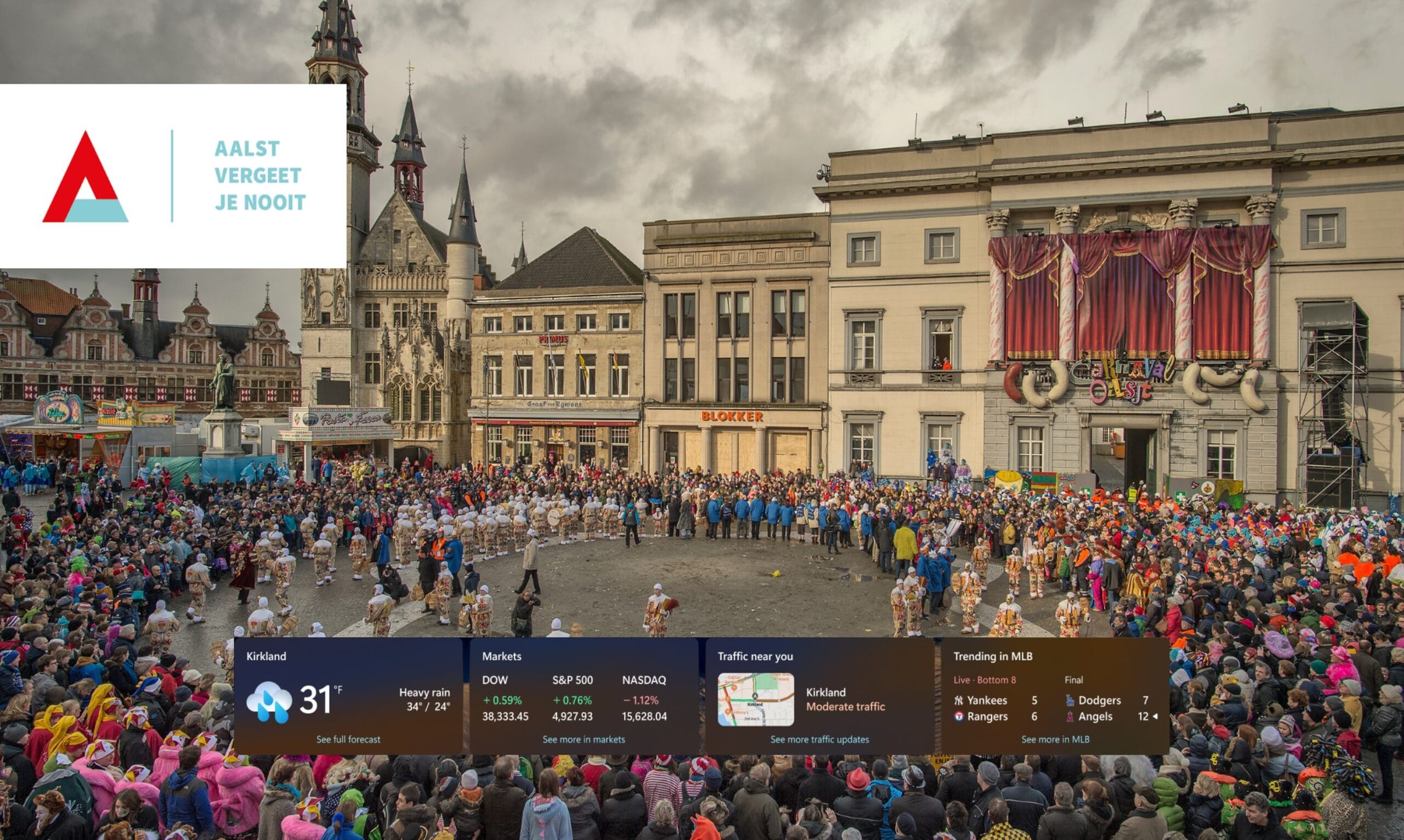
A lock screen is what users see before logging onto their computer. Lock screen messages appear when a device is manually locked or wakes from sleep, serving a different moment in the workday compared to screensavers. These messages are highly visible and can be used to deliver important announcements, compliance reminders, or urgent updates right when employees log in or return to their devices.
Screensavers vs. Lock Screen Messaging: Key Differences
Understanding the distinction between screensavers and lock screen messaging helps organizations choose the right tool for the right moment. Here are the main differences:
- Activation Timing: Screensavers activate after a set period of user inactivity, while lock screen messages appear when a device is manually locked or wakes from sleep.
- Purpose: Screensavers were originally designed to prevent screen burn-in on CRT and plasma monitors, but now focus on aesthetics, branding, and passive communication. Lock screen messaging is designed for high-visibility communication at login or unlock moments.
- Use Cases: Screensavers are ideal for reinforcing branding, providing visual interest, and delivering non-urgent messages during idle time. Lock screen messages are best for delivering critical notifications, compliance reminders, and urgent updates that need to be seen immediately.
- Workday Moments: Screensavers serve during periods of inactivity, while lock screens appear at login, unlock, or when returning from sleep—ensuring messages are seen at key transition points.
With these foundational concepts in mind, let’s explore how ConnectedCompany leverages both screensavers and lock screen messaging to enhance workplace communication.
A Canvas for Corporate Culture: The Corporate Lock Screen
The ConnectedCompany platform has always been about uniting teams, inspiring creativity, and achieving shared goals. With our latest feature, organizations can now elevate their corporate culture by dispatching custom wallpapers and lock screen images directly to their team members’ devices. This innovative approach ensures that every screen reflects the organization’s identity, values, and mission, reminding employees of key messages and making them visible throughout the workday.
To see how you can implement these features, let’s look at how the process works step by step.
How It Works
Sending custom wallpapers and lock screen images to your team is remarkably straightforward with ConnectedCompany. Here’s how to get started:
1. Design Your Images
Craft compelling images that represent your organization’s ethos, celebrate achievements, or promote upcoming events and initiatives. These visuals serve as daily reminders of the team’s collective purpose and goals.
2. Select Your Team
Through ConnectedCompany’s intuitive platform, choose the team or department you wish to send the images to. You can also select the intended users and target by location for more personalized communication, ensuring the right message reaches the right audience.
3. Deploy with a Click
Once your images and recipients are set, deploying them is as easy as clicking a button. Your custom wallpapers and lock screen images will then appear on your team members’ devices, instantly transforming their screens into beacons of company pride and motivation.
For more detailed instructions, visit the ConnectedCompany support page.
The Benefits
Boost Morale and Unity
Personalized screens reinforce a sense of belonging and team spirit, reminding employees they’re an integral part of the organization.
Enhance Communication
Use visual cues in your wallpapers and lock screens to highlight key messages, upcoming events, or important announcements, ensuring everyone stays informed.
Inspire Creativity and Engagement
Creative and visually appealing images can inspire innovation and foster a positive work environment, encouraging employees to think outside the box.
Deliver Critical Notifications and Notices
Notifications and urgent notices can be delivered through screensavers, lock screens, and idle modes, ensuring important information is seen even when the PC is in sleep or lock mode. This approach makes sure that employees notice critical updates, emergency alerts, or system issues, even if they are away from their desks or before they log in to their systems, similar to how Toast Notifications capture attention in a distracted world.
Organizations can rely on these systems to deliver security reminders, such as password updates, before login, and ensure that screensaver and lock screen features work seamlessly across different windows and PCs.
What is a Screensaver?
A screensaver is a computer program that fills the screen with moving images or patterns when the computer has been idle for a long time. Originally, screensavers were designed to prevent phosphor burn-in on CRT monitors, but today they are primarily used for entertainment, aesthetics, branding, and security.
What is a Lock Screen?
A lock screen is what users see before logging onto their computer. Lock screen messages appear when a device is manually locked or wakes from sleep, serving a different moment in the workday compared to screensavers.
Lock Screen Messages
Lock screen messages offer organizations a unique opportunity to capture employees’ attention at the most critical moments—whenever the lock screen appears as staff log in, unlock, or return to their computers after being idle, much like creative uses of screensavers for internal communication can keep teams informed in the background. This high-visibility feature transforms the corporate lock screen into a powerful tool for internal communication, ensuring that key messages are front and center every time employees interact with their devices.
By leveraging lock screen messages, companies can display important announcements, compliance reminders, and timely updates directly on the screen, making it nearly impossible for employees to miss crucial information, while custom corporate screensavers for branding can reinforce identity whenever devices are idle. Whether it’s promoting upcoming company events, reinforcing corporate values, or sharing safety and engagement reminders, the lock screen becomes a dynamic channel to keep employees informed and aligned with organizational goals.
The ability to set and manage lock screen messages through group policy or specialized software means administrators can easily publish targeted content to specific departments, locations, or the entire company. This ensures that the right messages reach the right audience at the right time, supporting compliance, safety, and engagement initiatives across the organization.
Lock screen messages are especially effective because they appear whenever a computer is locked, idle, or when employees log in—providing repeated exposure to key messages throughout the workday and aligning with emerging future trends in corporate communication that emphasize ambient, always-on messaging. This increased visibility helps reinforce important information, reduce the risk of missed communications, and support a stronger workplace culture.
Incorporating lock screen messages into your internal communication strategy with ConnectedCompany not only increases the visibility of your most important messages but also supports employee engagement and alignment. By making use of this feature, organizations can ensure that every employee stays informed, engaged, and connected to the company’s mission and values—every time they access their computer.
Setting the Stage for Success
At ConnectedCompany, “Unite, Inspire, Achieve” isn’t just a tagline — it’s the foundation of everything we do. By allowing teams to share custom wallpapers and lock screen images, we’re giving organizations a powerful tool to communicate their vision, celebrate their culture, and motivate every member towards collective success.
Embrace the power of visual communication with ConnectedCompany and transform every screen into a canvas of inspiration and unity. Start today and see the difference it can make in your team’s communication, collaboration, and camaraderie.